How to Convert HTML to PDF for Free Online (No Upload Needed)

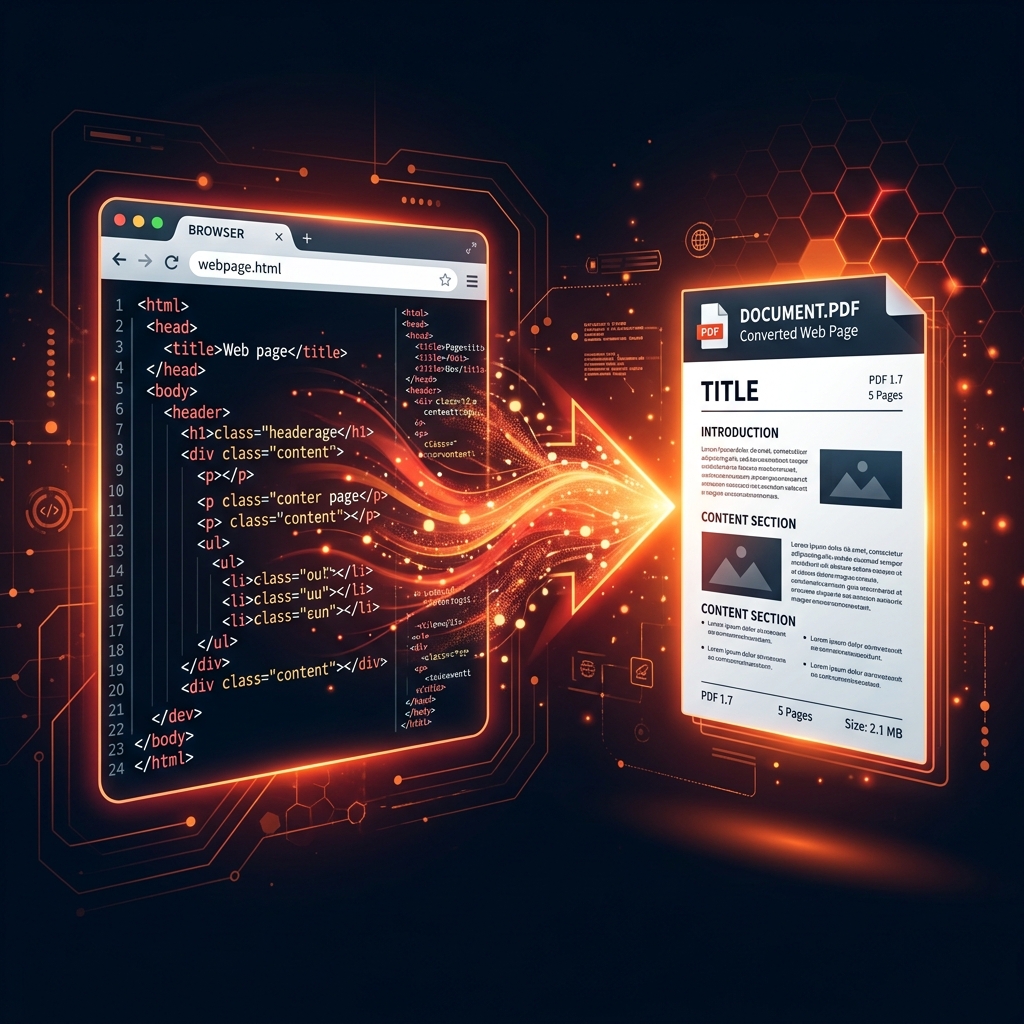
Need to convert an HTML file to PDF quickly and privately? This guide explains how to turn any HTML document into a clean, professional PDF, instantly, in your browser, with zero uploads and zero sign-up required.
Whether you're a web developer archiving a project page, a marketer saving a landing page for offline review, or a student preserving research content, converting HTML to PDF is one of the most common document tasks on the modern web. And yet, most available tools still require uploading your HTML to a server, which raises real privacy concerns for sensitive or proprietary content.
Why Convert HTML to PDF?
HTML is the language of the web, but it's not ideal for sharing, archiving, or printing. Here's why people convert HTML files to PDF every day:
- Preserve layout: HTML pages depend on CSS, fonts, and browser rendering, all of which can vary. A PDF freezes the layout exactly as it appears.
- Offline access: PDFs work without an internet connection. You can save a webpage as PDF and read it anywhere.
- Professional sharing: A PDF is a universal format, readable on every device without a browser required.
- Legal and compliance purposes: Web content often needs to be archived as PDF for legal evidence, auditing, or record-keeping.
- Email attachments: Sending a PDF is far cleaner than sending an HTML file that the recipient might not know how to open.
- Print-ready format: HTML-to-PDF converters ensure your web content prints correctly with proper page breaks and margins.
The Problem with Headless Browser-Based Converters
Server-based HTML to PDF converters (like wkhtmltopdf, Puppeteer, or many online SaaS tools) work by loading your HTML in a headless browser on a remote server and rendering it to PDF. While this approach produces excellent output, it comes with serious tradeoffs:
- Privacy risk: Your HTML content, including any sensitive text, images, or data, is processed on a server you don't control.
- External resource loading: Server-based tools may load external scripts or tracking pixels embedded in your HTML.
- Rate limits and paywalls: Most online headless-browser converters limit the number of free conversions per day or watermark results.
- Slow for large pages: Server round-trips add latency for larger HTML documents.
✅ Imageconvertix's browser-based approach: Your HTML file is read and rendered entirely within your browser using the jsPDF library. No content is sent to any external server. This means complete privacy for sensitive HTML content, from internal tool UIs to confidential reports.
Step-by-Step: Convert HTML to PDF with Imageconvertix
Navigate to Imageconvertix HTML to PDF on any device, no installation needed.
Click the HTML → PDF conversion type button to configure the converter for your file format.
Drag your .html or .htm file into the drop zone, or click to browse and select it from your file system.
The HTML content is parsed and rendered using jsPDF's html() method, which processes your HTML structure client-side.
Once conversion completes, click the download button to save your PDF file locally.
HTML to PDF: Browser Print vs. Dedicated Converter
🖨️ Browser Print to PDF
- Built into every browser
- Captures current page render
- Includes browser chrome elements
- Cannot convert local .html files easily
- Page break control is limited
⚡ Imageconvertix HTML to PDF
- Works with local .html files directly
- No browser UI elements in output
- Cleaner, document-focused output
- Private, no server involved
- Works offline after page load
Common Use Cases for HTML to PDF Conversion
- Web developers: Archive client website mockups and prototypes as PDFs for presentation or sign-off.
- Digital marketers: Save landing page designs as PDFs for campaign documentation or client approval.
- Content creators: Convert blog posts and articles to PDF for offline newsletters or downloadable content.
- Students and researchers: Save web-based research, wikis, or educational content as PDF for offline study.
- Legal and compliance teams: Archive web content as PDF evidence for contracts, terms of service snapshots, or regulatory requirements.
- QA engineers: Export HTML test reports generated by testing frameworks (Jest, Pytest HTML) as PDFs for distribution.
How to Get the Best HTML to PDF Output Quality
Client-side HTML to PDF conversion has some limitations compared to headless browser rendering. Here are tips to maximize quality:
- Inline your CSS: External stylesheets may not be loaded during client-side conversion. Use inline
style=""attributes or a<style>block in your HTML's<head>. - Use web-safe fonts: External Google Fonts or custom fonts loaded via CDN may not render in client-side converters. Use system fonts like Arial, Georgia, or Verdana for guaranteed output.
- Avoid complex CSS grid layouts: Flexbox and grid layouts may simplify in the PDF output. Use simpler table-based or block layouts for documents intended for PDF export.
- Optimize images: Embed images as base64 data URIs in your HTML to ensure they appear in the PDF. External image URLs may not load during conversion.
- Test with a simple file first: If you have a complex HTML document, test with a stripped-down version first to verify the converter handles your content correctly.
HTML to PDF for Developers: When to Use Client-Side vs. Server-Side
As a developer building a web application that needs to generate PDFs, you have two main approaches:
Client-side (Imageconvertix approach): Use jsPDF or html2canvas to render PDFs in the user's browser. This is ideal for user-initiated, privacy-sensitive documents where you don't want file content to pass through your server. Perfect for invoices, personal reports, and document exports in SaaS applications.
Server-side (Puppeteer/wkhtmltopdf approach): Use a headless browser on your server for pixel-perfect, full-CSS-support rendering. Best for automated batch processing, scheduled reports, or documents requiring complex layouts that jsPDF can't handle.
For most individual user needs, archiving, sharing, or saving HTML content as PDF, the client-side approach is faster, more private, and completely free.
Frequently Asked Questions
How do I convert an HTML file to PDF for free?
Open Imageconvertix, select "HTML → PDF," drop your .html file, and click download. The entire conversion happens in your browser, no server, no upload, no cost.
What is the best free HTML to PDF converter online?
Imageconvertix is among the best free HTML to PDF converters for privacy-conscious users. It requires no account, no upload, and works on any device with a modern browser.
Can I convert a webpage to PDF without the Print dialog?
Yes. Imageconvertix converts a local .html file to PDF programmatically, without the browser's Print dialog, giving you a cleaner document-style output without browser navigation UI.
Does HTML to PDF preserve CSS styles?
Inline CSS styles and embedded <style> blocks are preserved. External stylesheet links (like Google Fonts CDN or remote .css files) may not load during client-side conversion. For best results, inline your CSS before converting.
Convert Your HTML File to PDF Now
Free, private, instant, works on any device. No upload, no account, no watermark.
Convert HTML to PDF Free →Related: Word to PDF · Excel to PDF · CSV to JSON · PDF to Word