How to Compress Images Without Losing Quality in 2026

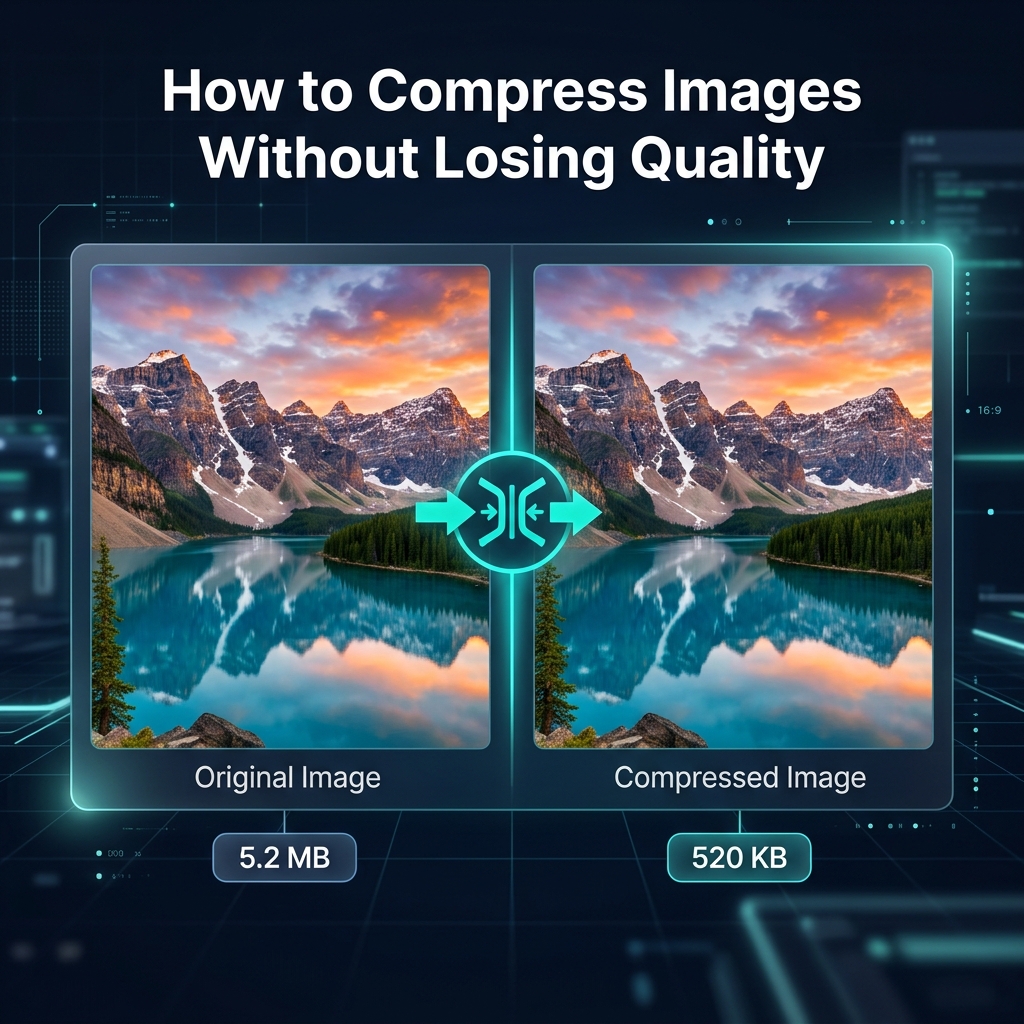
Every second, millions of web pages fail to load fast enough, and oversized images are the number one culprit. Studies show that a one-second delay in page load time reduces conversions by 7%. Yet most website owners, bloggers, and developers still upload raw, uncompressed images straight from their camera or design tool.
This guide explains exactly how to compress images without losing quality, what the science behind compression actually is, which formats to use in 2026, and how to do it all for free in your browser without uploading your files to any server.
What Is Image Compression?
Image compression is the process of reducing the file size of a digital image by encoding its data more efficiently. A typical uncompressed image stores color information for every single pixel individually. Compression algorithms find patterns, redundancies, and imperceptible details and encode them in a more compact form.
The result: smaller files that load faster, consume less bandwidth, use less storage, and often look identical to the original when viewed at normal size on a screen.
Lossy vs. Lossless Compression: The Key Difference
There are two fundamentally different approaches to compression, and understanding the difference is essential for choosing the right method:
📉 Lossy Compression
- Permanently discards some image data
- Achieves 40–90% file size reduction
- Small quality loss, often imperceptible
- Best for: photos, web images, social media
- Formats: JPEG, WebP (lossy), AVIF (lossy)
✅ Lossless Compression
- Removes only redundant data
- Achieves 10–30% file size reduction
- Zero quality loss, pixel-perfect identical
- Best for: logos, icons, screenshots, text
- Formats: PNG, WebP (lossless), GIF
For most web use cases, blog images, product photos, hero banners, lossy compression at quality 75–85% is the sweet spot. The file sizes drop dramatically while the visual difference is undetectable at typical viewing distances and screen resolutions.
How Lossy Compression Works (The Science)
JPEG compression, the most common lossy algorithm, uses a technique called Discrete Cosine Transform (DCT). It divides your image into 8×8 pixel blocks and converts each block from spatial domain (raw pixel values) to frequency domain (patterns of change across the block). High-frequency details (sharp edges, fine textures) are then reduced or eliminated based on a quality factor, because the human visual system is far more sensitive to low-frequency information (overall shapes and color gradients) than to high-frequency noise.
This is why a JPEG at quality 80 can look nearly identical to the original while being 5× smaller, the data removed was never perceptually important to begin with.
Modern formats like WebP and AVIF use even more advanced algorithms (VP8 and AV1 codecs respectively) that analyze larger image regions, use better prediction models, and apply more sophisticated entropy coding, achieving the same visual quality at 30–50% smaller file sizes than JPEG.
Image Format Comparison: Which to Use in 2026?
| Format | Compression | Best For | Browser Support |
|---|---|---|---|
| JPEG / JPG | Lossy | Photos, backgrounds | Universal |
| PNG | Lossless | Logos, icons, screenshots | Universal |
| WebP | Lossy + Lossless | Web images (all types) | 97%+ browsers |
| AVIF | Lossy + Lossless | Photos, web images | 90%+ modern browsers |
| GIF | Lossless (indexed) | Simple animations | Universal |
Recommendation for 2026: Use AVIF as your primary format for photos (best compression), WebP as a fallback, and JPEG only for maximum compatibility with older browsers or email clients.
How to Compress Images for Free Without Uploading (Step-by-Step)
Go to Imageconvertix, no sign-up, no installation. Works on any device and browser.
Select a target file size chip (5kb–5mb) or use the quality slider (1–100). Start at quality 80 for photos.
Drag up to 50 images at once into the drop zone. Supports JPEG, PNG, WebP, AVIF, BMP, and more.
Each image shows original size, compressed size, and savings percentage. Adjust quality slider in real time.
Download each image or click "Download All" to save a ZIP of all compressed files.
🔒 100% private: Imageconvertix processes every image using browser APIs (Canvas, WebCodecs). Your files never leave your device, not even metadata is transmitted.
Target File Size vs. Quality Slider: When to Use Each
Imageconvertix offers two compression modes. Understanding when to use each will save you time:
- Target Size mode: Use when you have a strict file size requirement, for example, a profile picture upload that must be under 200 KB, or an email attachment limit. The compressor automatically finds the right quality to hit your target.
- Quality Slider mode: Use when you want consistent visual quality across a batch of images regardless of their final sizes. Setting quality to 80% across 20 product photos gives you predictable, balanced output.
Tips for Maximum Compression Without Quality Loss
- Start at quality 80: For most photographs, quality 75–85 is the "invisible loss" zone. Below 70, artifacts become visible. Above 90, file sizes grow with minimal visual benefit.
- Convert to WebP or AVIF: Simply switching a JPEG to WebP at the same quality setting reduces file size by 25–35% with no additional quality loss.
- Resize before compressing: Don't upload a 4000×3000px photo when you'll display it at 800×600px. Resize first to remove unnecessary pixels, then compress.
- Strip metadata: EXIF metadata (GPS coordinates, camera model, timestamps) adds size without visual value. Most browser-based compressors strip this automatically.
- Use lossless for graphics: For logos, icons, and UI screenshots with solid colors and sharp edges, always use PNG or lossless WebP, lossy compression creates visible artifacts on these image types.
- Batch compress wisely: Not all images need the same compression level. High-detail photographs tolerate lower quality settings better than simple illustrations.
How Image Compression Affects SEO and Core Web Vitals
Google's Core Web Vitals, specifically Largest Contentful Paint (LCP), directly measure how fast your main page image loads. LCP is one of Google's confirmed ranking signals. Properly compressed images are the single fastest way to improve LCP scores.
Here's the impact unoptimized images have on search rankings:
- A 500 KB hero image loading over a 4G connection adds approximately 1.5 seconds to LCP.
- The same image compressed to 80 KB (WebP, quality 80) reduces that to under 0.3 seconds.
- Sites scoring "Good" on LCP (under 2.5 seconds) rank measurably better than those scoring "Needs Improvement."
Use Imageconvertix to compress your images, then test your LCP improvement with Google PageSpeed Insights or Lighthouse.
Compressing Images for Different Use Cases
- Blog and editorial images: Quality 75–80, WebP format, 1200px wide maximum. Target under 150 KB per image.
- E-commerce product photos: Quality 80–85, WebP, 800–1200px. Multiple sizes for responsive images with srcset.
- Social media: Platform-specific optimization, Instagram recommends JPEG at quality 80, Twitter/X prefers WebP under 5 MB.
- Email newsletters: JPEG only (email clients have poor WebP support), quality 70–75, under 100 KB per image.
- App icons and favicons: PNG lossless or ICO format. Don't compress icons with lossy methods.
- Hero / full-width banners: AVIF preferred, quality 75, lazy-load below the fold, use responsive srcset.
Frequently Asked Questions
Can you compress images without losing quality?
Yes. Lossless compression (PNG, lossless WebP) reduces file size by 10–30% with absolutely no quality loss. Lossy compression at quality 75–85 achieves 40–90% reduction with differences invisible to the human eye at normal viewing size.
What is the best free image compressor online?
Imageconvertix is one of the best free online image compressors, browser-based, private, supports batch processing of 50 files, adjustable quality, target file size mode, and zero uploads required.
How much can you compress a JPEG image?
JPEG images can typically be reduced by 40–80% at quality settings of 70–85 with minimal visible loss. With aggressive settings, reductions up to 90% are achievable, though artifacts become visible below quality 60.
What image format gives the smallest file size?
AVIF generally produces the smallest file sizes, up to 50% smaller than JPEG at equivalent visual quality. WebP is second, achieving 25–35% smaller files than JPEG. For lossless content, lossless WebP beats PNG by 25–35%.
Does compressing an image reduce its dimensions?
No. Compression reduces file size by encoding pixel data more efficiently. The pixel dimensions (width × height) remain unchanged unless you explicitly resize the image before or after compression.
Compress Your Images Free, Right Now
No upload, no account, no watermark. Batch compress up to 50 images with adjustable quality in seconds.
Start Compressing Free →Related: WebP vs AVIF · Image SEO Guide · Batch Processing · Privacy Guide